All articles
How to track a walk on a map
Record your route and distance while you walk. Doggy Time times the walk and draws it on a map.
Track a walk
- On the main screen, tap your pet's card.
- On the Activities tab, tap Walk at the bottom of the screen. Tap More if you don't see it.
- Turn on Enable GPS Tracking.
- The first time, read the Location Access message and tap Agree. Then allow location access when your phone asks. Choose "Always" or "Allow all the time" so the walk keeps recording while your phone is locked.
- Tap the round play button to start.
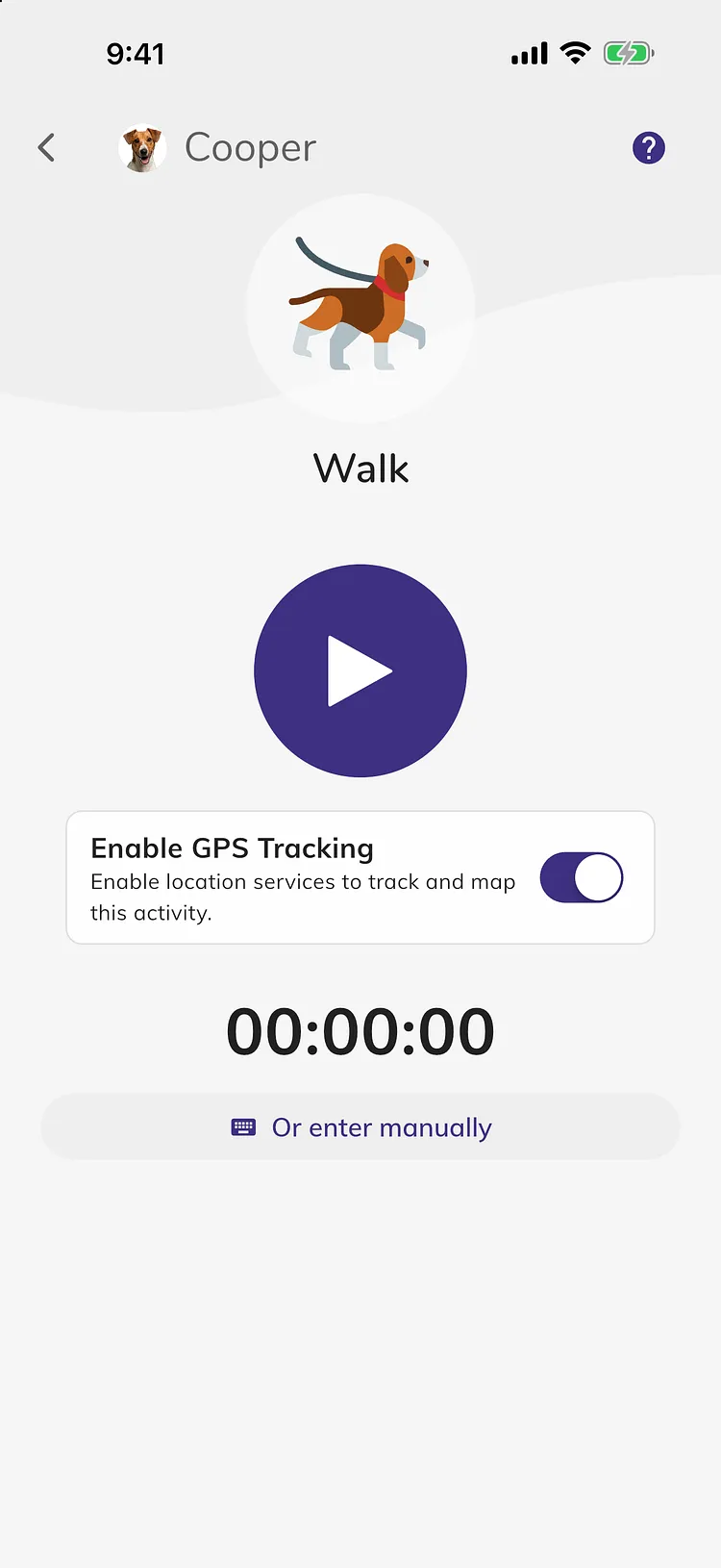
While you walk, the time, distance and a live map show in the app. The time and distance also show on your lock screen on an iPhone, or as a notification on Android.
Finish the walk
- Open the walk again, from the Activities tab or the Walk button.
- Tap the round button to pause.
- Tap the check. The start time, end time and distance are filled in.
- Add any details and tap Save.
Tap the walk in the list to see its route on the map. Tap the full-screen button to make the map bigger.
Good to know
- You can also record a walk from your Apple Watch, even if you leave your iPhone at home. See How to track a walk with your Apple Watch.
- GPS turns on for Walk, and for your own activities with Has Location (GPS) Tracking? checked.
- If you forget to stop, GPS stops recording after 6 hours to save your battery. The timer keeps running until you finish it.
- A walk uses one of your timers. The free plan includes 10 timers. See How to use timers.
Your location and privacy
- Your route is saved with the walk and shared only with the people on your account.
- Doggy Time only records your location while a walk with GPS is running.
- You can turn Enable GPS Tracking off at any time, or remove location access in your phone's settings. Walks still work without GPS, just without a map or distance.
Troubleshooting
- I don't see Enable GPS Tracking: it only shows on the Walk timer, or a timer of your own activity with Has Location (GPS) Tracking? checked, before you tap play. If the walk opens without a timer, tap Or start timer.
- The switch won't turn on: tap Open Location Settings and allow location access for Doggy Time. Tap Help to see which permissions are needed.
- The route stops when my phone is locked: set location access to "Always" (iPhone) or "Allow all the time" (Android).
- The distance looks wrong: GPS works best outdoors with a clear view of the sky. You can change the distance before you tap Save.