How to create a custom activity
Make your own activity type when the built-in ones don't cover something you track, for example "Nail trim" or "Socializing". Custom activities are part of Premium.
Create a custom activity
- On the main screen, tap your pet's card.
- Swipe the tabs at the top to the left and tap Settings. You can also tap More at the bottom of the Activities tab, then Settings.
- Tap Add New Activity.
- Type an Activity Name.
- Tap the round emoji to pick an icon.
- Turn on the options you need:
- Has Timer? lets you time the activity, like a walk.
- Has Options? lets you add items, like types of food.
- Tap Save.
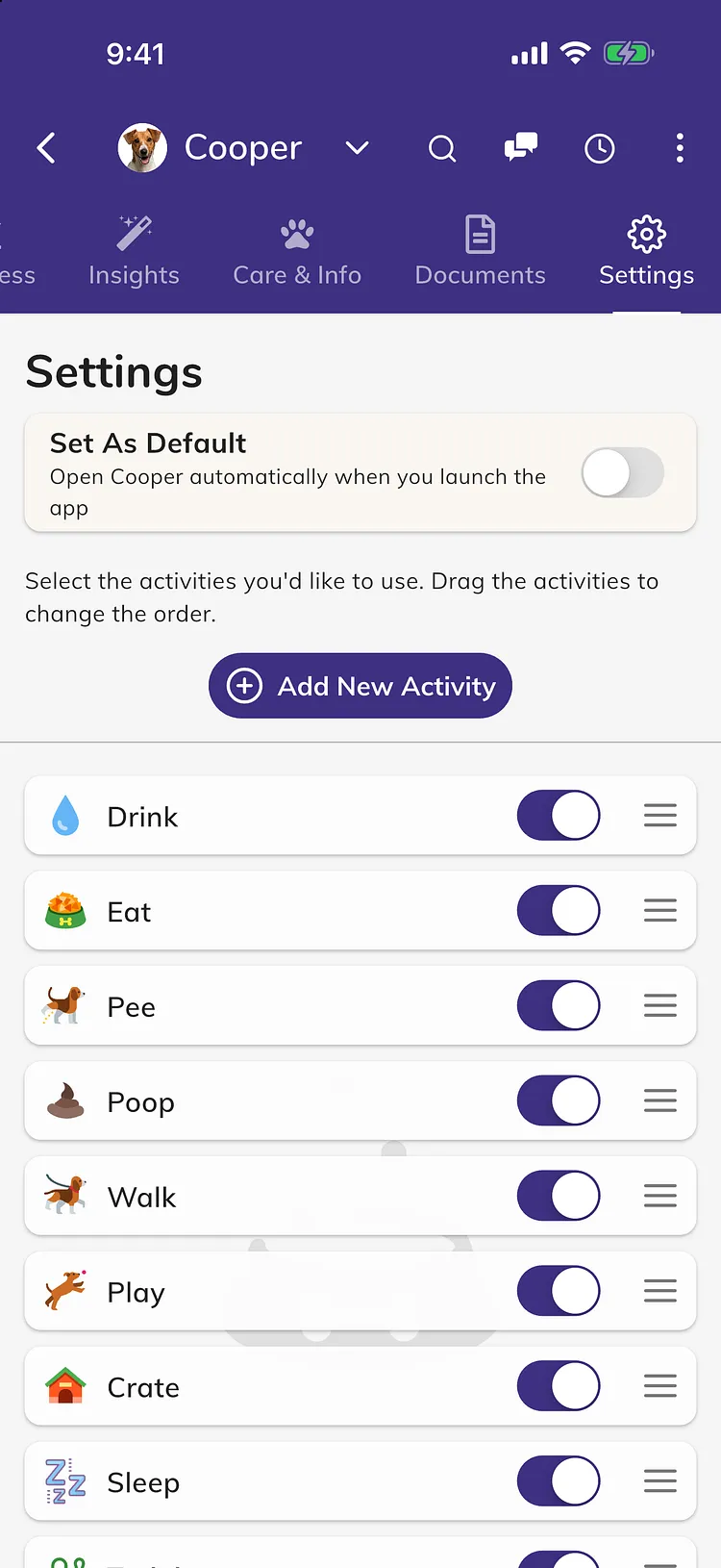
Your new activity is added to the bottom of the list. It works like any other activity, so you can log it from the bar at the bottom of the Activities tab.
Put it in the activity bar
The bar at the bottom of the Activities tab shows the first 4 activities on the Settings tab.
- On the Settings tab, press and hold your new activity.
- Drag it up to where you want it.
Use it for your other pets
A custom activity is added to all your pets. To check, open the other pet's Settings tab and make sure the activity is turned on. Turn it off for any pet that doesn't need it.
Edit or delete a custom activity
- On the Settings tab, tap the pencil icon next to the activity.
- Change the name, icon or options and tap Save. Or tap Delete, then Yes.
Deleting a custom activity also deletes every entry and reminder logged for it, for all your pets. You can't undo this.
Premium
Without Premium, Add New Activity shows a star. Tapping it asks you to sign in, then shows how to upgrade. See What's free and what's in Premium.
Troubleshooting
- "Activity Name is required": type a name, then tap Save again.
- My custom activity isn't in the bar at the bottom: tap More to find it, or drag it into the first 4 on the Settings tab.
- There's no pencil icon: only custom activities can be edited or deleted. Built-in activities can only be turned on or off.